 MvpDots
Your first login
What you see the first time, and the five keys worth learning first.
Log out after installing and choose Hyprland (uwsm-managed) on the login screen. The first start takes a second longer: the wallpaper is set and its colours are applied everywhere.
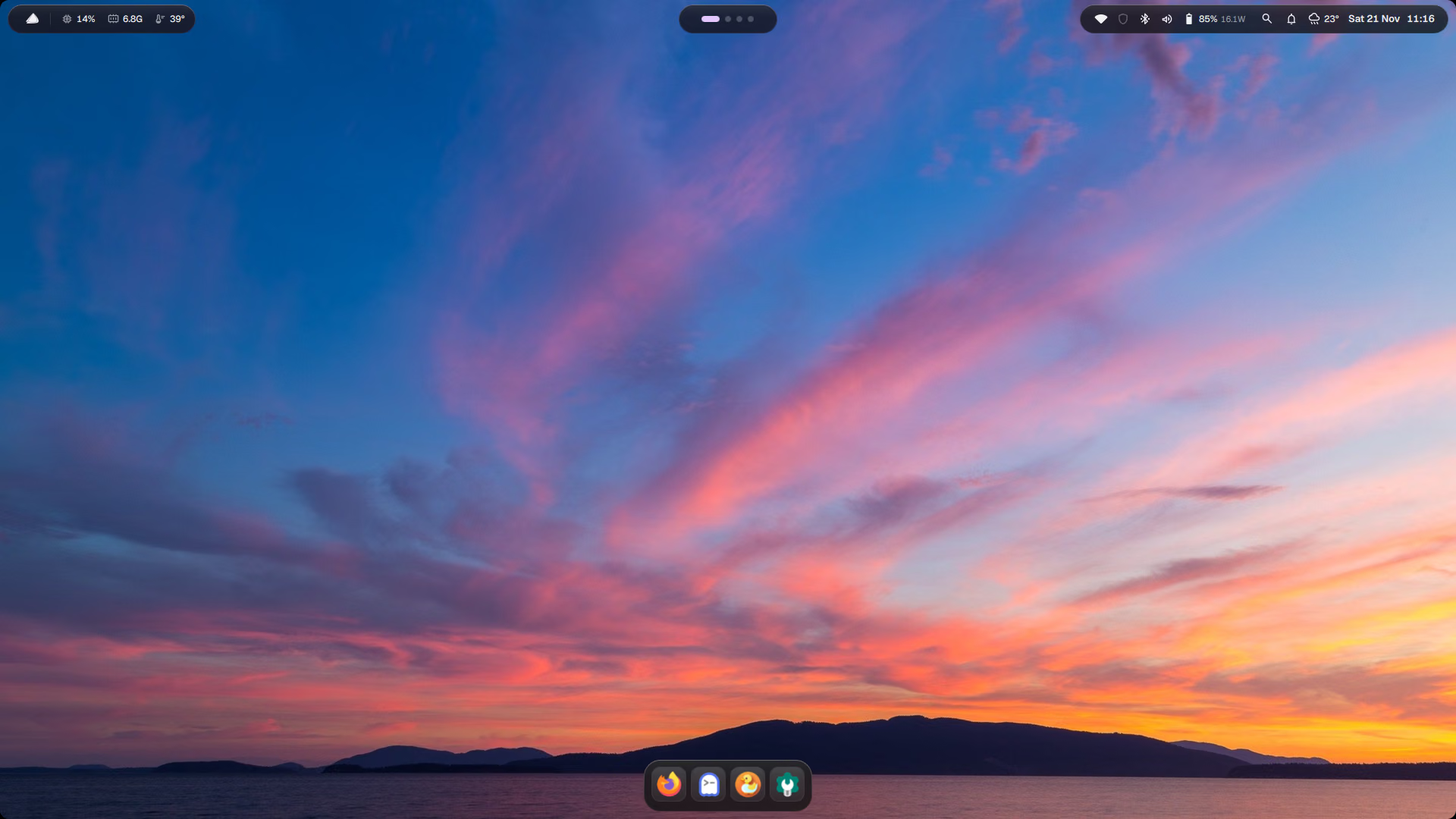
What is on the screen
| Where | What |
|---|---|
| Top left | The logo opens the system menu. Next to it: desktop dots and live CPU, memory and temperature. |
| Top centre | The Dynamic Island: the clock, and whatever needs your attention. |
| Top right | Tray icons, Wi-Fi, Bluetooth, volume and battery. Click to open Control Centre. |
| Bottom | The dock. It hides only when a window would cover it. |
Five keys to learn first
| Keys | What it does |
|---|---|
| Win | Tap it: every app, in a grid |
| Win+Space | Spotlight: apps, maths, files, settings, the web |
| Win+T | A terminal |
| Win+I | Settings |
| Win+/ | Every other shortcut, on screen and searchable |
Windows habits work
Alt+Tab, Alt+F4, Win+arrows to snap, Win+D for the desktop and Ctrl+Alt+Del for the power menu all do what you expect.
Make it yours in a minute
Pick a wallpaper
Press Win+W, use the arrow keys, press Enter. The whole desktop recolours itself.
Choose how much glass
Settings → Liquid Glass (needs the optional plugins), or Settings → Appearance → Glass transparency.
Pin your apps
Right-click an app in the dock → Pin, or Settings → Desktop & Dock.
Next: the full shortcut list, or a tour of the Dynamic Island.