 MvpDots
Applications & Mission Control
A big app grid on the Win key, and every window and desktop at a glance.
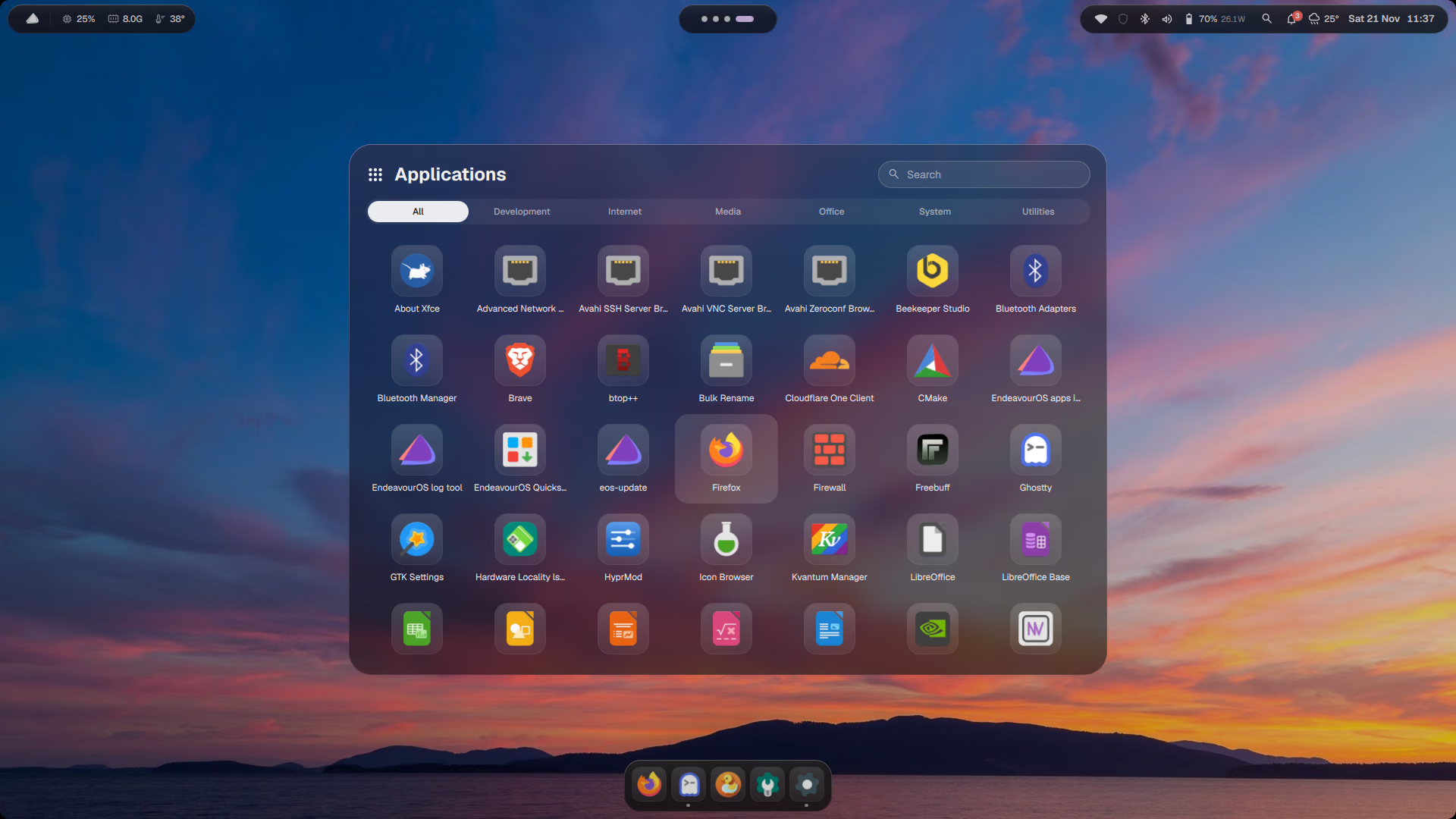
Applications (tap Win)
A full app grid in the style of macOS Tahoe's launcher: title, search, category tabs (Development, Internet, Media, Office, System, Utilities) and large icons. Typing filters instantly; arrow keys and Enter launch.
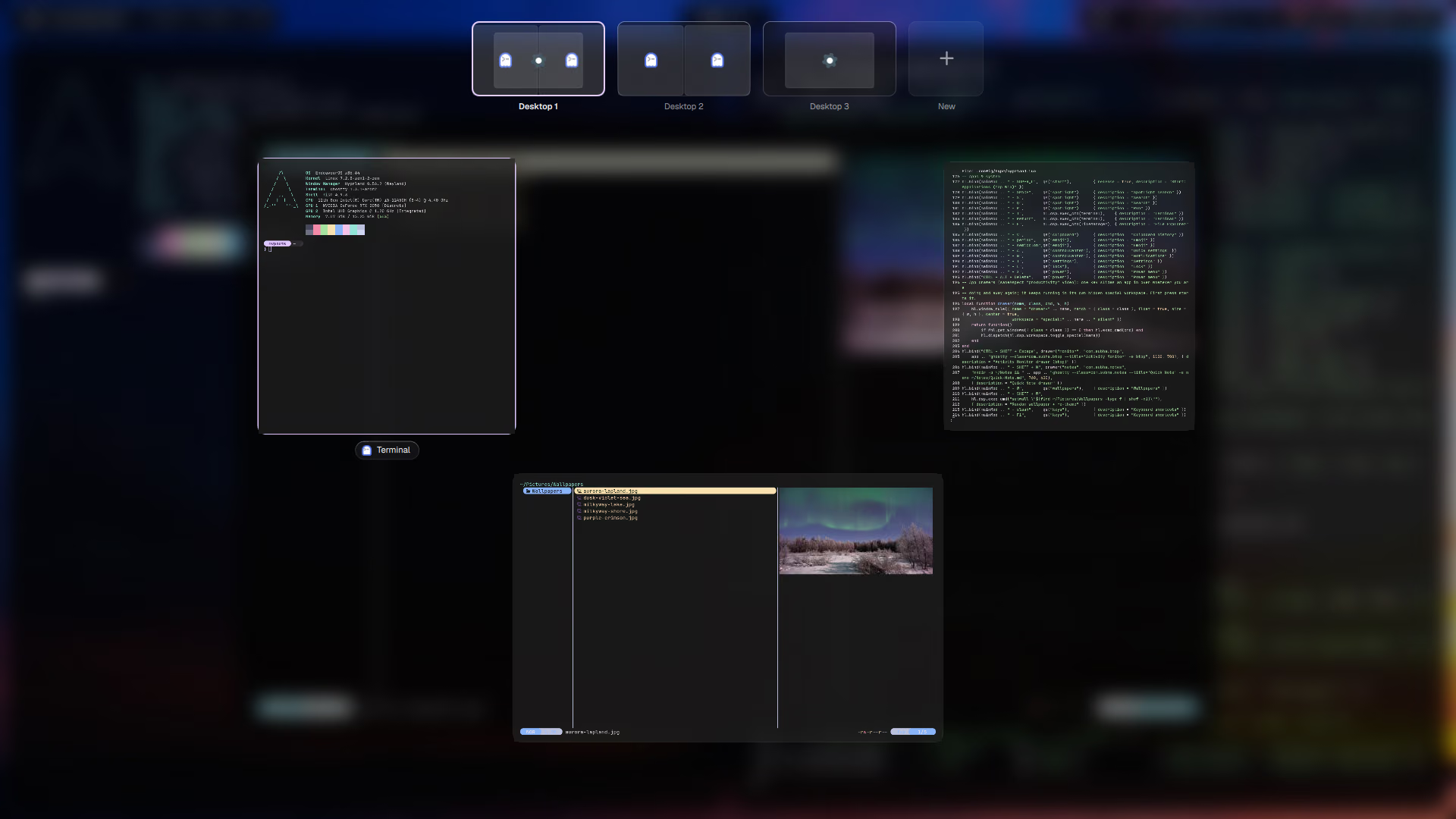
Mission Control (Win+Tab)
Also opened with a three-finger swipe up, or by the top-left hot corner.
- Top: every desktop as a small screen with its windows drawn to scale. + adds a desktop.
- Centre: the windows of the current desktop spread out, with real previews.
- Click a window to focus it, middle-click to close it, drag it onto a desktop to move it there.
Previews are captured once when Mission Control opens, so it costs nothing while closed.
Show desktop
Win+D, or a four-finger swipe down: every window moves out of the way; do it again to bring them back.