 MvpDots
Screenshots & Live Text
A capture toolbar like macOS's Cmd+Shift+5, plus copying text from anything on screen.
Win+Shift+S opens a glass toolbar at the bottom of the screen:
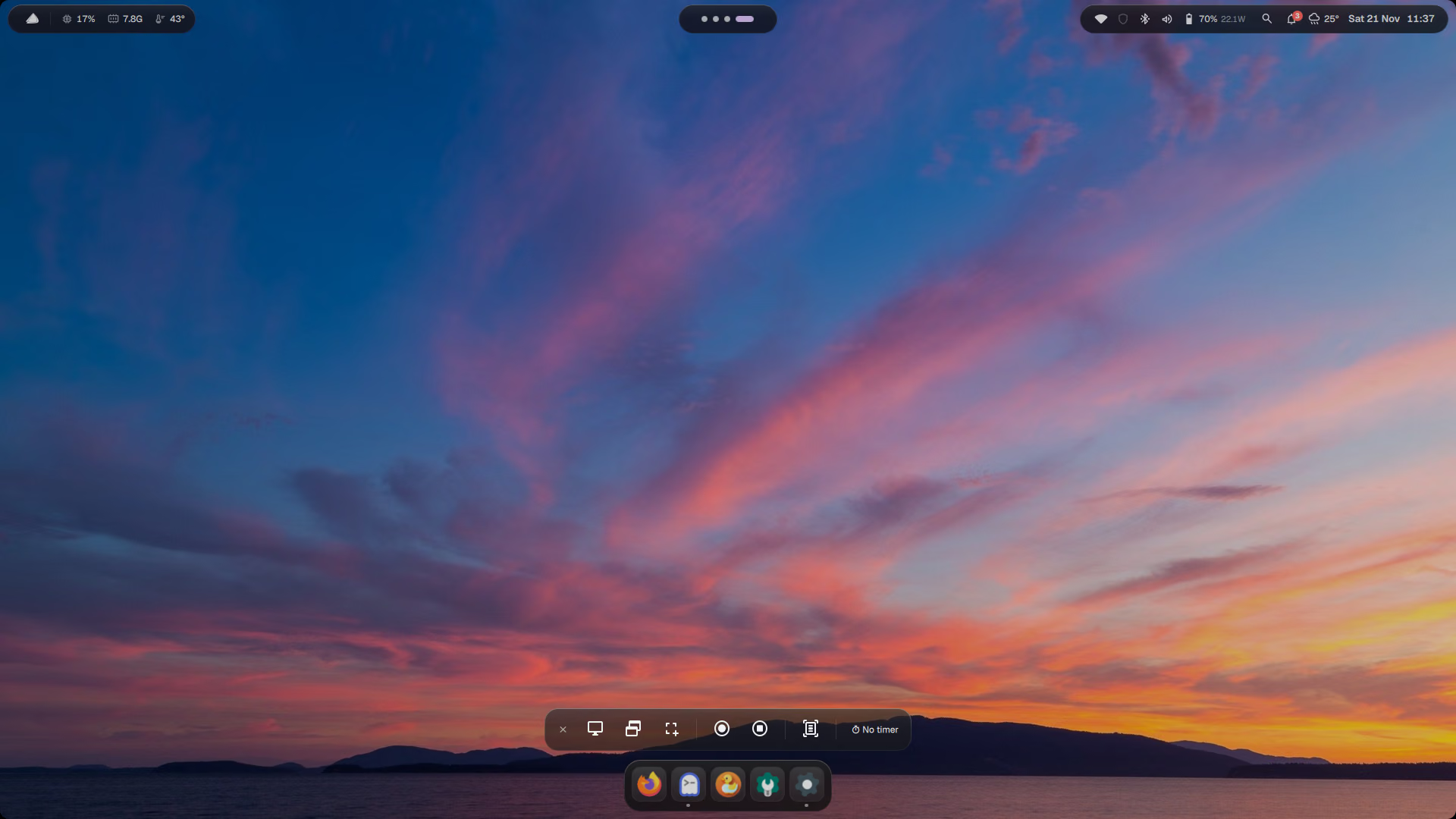
Screen · Window · Selection · Record screen · Record selection · Live Text, plus a timer.
- After a screenshot, a thumbnail floats in the bottom-right corner for 5 seconds. Click it to annotate
(satty); drag it away or press × to dismiss. Screenshots go to the clipboard and
~/Pictures/Screenshots. - Recording uses
gpu-screen-recorderwith the GPU's hardware encoder, so the CPU stays cool. Files go to~/Videos/Recordings. Win+Shift+R starts and stops it directly. - Live Text (Win+Shift+T): draw a box around any text (in a video, an image, an app that doesn't let you select) and it is copied as text (tesseract).
Quick keys: Print = snip an area, Win+Print = whole screen.
How it works
Every button in the toolbar runs one script, ~/.local/bin/snap:
snap region        # pick an area (slurp), save, copy, show the thumbnail
snap window        # the focused window
snap screen 3      # the whole screen after 3 seconds
snap text          # Live Text: OCR the area with tesseract and copy the words
Recording uses gpu-screen-recorder, which encodes on the GPU's video engine.